Lower thirds for Google Meet, Teams and Zoom — in the browser
To put a lower third on Google Meet, Teams or Zoom in the browser, install Overlaysmith, a free Chrome extension, type your name and title on its Manage images page, and join your call in Chrome. It adds the bar to the video you send, so you don't need to be the host and nobody has to allow it.
01 What is a lower third on a video call?
It's the name-and-title bar along the bottom of the picture, like the caption under a speaker on the news. Most call platforms only give you a display name in the corner of your tile. A lower third puts your name, title or website on the video itself, so it goes wherever your video goes in the call.
Overlaysmith adds it to the video you send, from your own browser. That's why it works on someone else's call: a client's Teams meeting, an event on Meet, an interview on Zoom. The meeting is theirs; your camera is yours.
02 How do I make one?
Open Overlaysmith's Manage images page and pick one of three ways:
- Type a lower third. A title, a subtitle and a color close to your brand. The text color is chosen for contrast automatically, and the size adapts so it fits on a phone screen.
- Bring your own. A 16:9 image, such as 1920×1080, that's transparent wherever your camera should show through. PNG, WebP, AVIF or GIF. A solid green background is removed for you.
- Describe one to an AI tool. Copy a ready-made lower-third prompt into the AI image tool you already use, add what you want, and bring the result back. The prompt tells the tool where the text must go to survive the crop.
Then join your call in Chrome. Turn on Outgoing preview in the popup to check it in the waiting room before anything is sent.
03 Will people on phones see my name?
Yes, if your name sits in the middle of the frame. Platforms crop the sides of your video to fit their layouts: a grid of squares shows only the middle of your frame, and a phone in portrait shows a narrow middle strip. Each image card shows two pairs of guide lines. Keep your name between the inner lines and it survives every layout, phones included. The typed lower third is already sized for that.
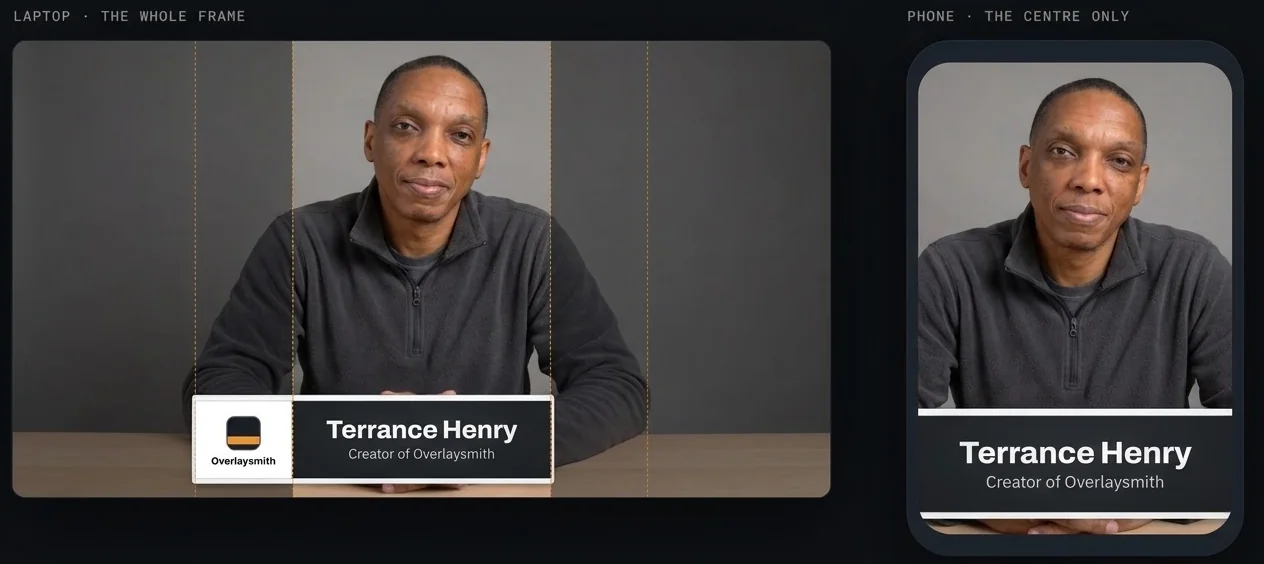
04 Does it work on Google Meet, Teams and Zoom?
Yes, in the browser. Each was tested on a real call with a second participant on another device. Join from Chrome, not the desktop app: Microsoft and Zoom both run their meetings in the browser too — see Microsoft's Use Microsoft Teams on the web and Zoom's Getting started with the Zoom Web App.
| Platform | What to know |
|---|---|
| Google Meet | Works, including effect changes and camera off and on mid-call. |
| Microsoft Teams (web) | Works, including effect changes mid-call. Join from the browser; the Teams desktop app isn't supported. |
| Zoom (web) | Works in the browser. Your own tile shows the image backwards — turn off Mirror my video in Zoom's video settings to read it (details). Participants see it the right way round. Zoom's blur and virtual backgrounds cover the image, so turn them off. |
It also works on Jitsi Meet, Whereby, Yep, Webex, GoTo Meeting, Zoho Meeting, Slack huddles and Discord in the browser. The full platform list has a note for each. Extensions run in Chrome on a desktop or laptop — Google's Install and manage extensions help page covers adding one.
05 What does it cost?
Nothing to start: Overlaysmith is free, with every feature. The free version shows a small overlaysmith.com mark at the top of your video while an overlay is on. For an interview or a paid speaking slot, the clean version removes it: $1.99, once — no subscription, nothing to cancel (terms).
06 What else do people ask?
Do I need to be the host to show a lower third?
No. Overlaysmith works on the video you send from your own browser, so the host doesn't need to allow it and nothing is installed on their side. The meeting's own rules about what you show on camera still apply.
Why can't I see the lower third on my own video?
On Google Meet, Teams and most platforms the image goes onto the video you send, not your own tile, which every platform mirrors. Turn on Outgoing preview in the popup to see exactly what participants see. On Zoom in the browser your own tile shows it too, backwards; turn off Zoom's Mirror my video setting to read it the right way round. Participants always see it correctly.
Does it work in the Teams or Zoom desktop app?
No. Overlaysmith works inside Google Chrome only. Join Teams or Zoom from the browser instead of the desktop app.
Does it work with background blur?
On Google Meet and Teams in the browser, yes, including changing effects mid-call. On Zoom in the browser, Zoom's blur and virtual backgrounds are drawn on top of the image and cover it, so turn them off while you use a lower third. A veil can hide your room instead.
What does it cost?
Overlaysmith is free with every feature. The free version shows a small overlaysmith.com mark at the top of your video while an overlay is on. $1.99, once, removes it. No subscription.
More answers are on the support page, or email support@overlaysmith.com — a person reads every message.